Inter-VLAN Routing
Problem Statement
Historically before I built out my network swtiches and there was just a lonely Dream Machine SE I was content with being bottlenecked by the 1GBps backplane. However, once I added a USW Pro Max 16 PoE switch which has 4 2.5GBps ports I wanted to ensure I maximized the potential throughput.
The problem is, without configuring inter-VLAN routing all packet traffic is between handled by the Dream Machine and because of that 1GBps backplane, even if the devices on the switch are capable of 2.5GBps, they will be bottlenecked by the Dream Machine's backplane. This causes two key issues:
If two devices on the switch are communicating with each other across VLANs, they will be bottlenecked by the DM as all L3 routing is handled by the networks
router.As the network expands this is putting more pressure on the DM since it's the central L3 for all the VLANs.
Solution
The solution is to configure inter-VLAN routing on the switch and make it the deadicated L3 router for the VLANs we wish to route between, especially since in this case both high traffic devices on different VLANs happen to be on the same switch. This allows the switch to route traffic between VLANs without having to send it to the DM, thus avoiding the 1GBps bottleneck and freeing up the DM to handle other tasks.
Topology
VLAN Design
Configuration
Setting up an Inter-VLAN Route
Configure The Designated Router for a VLAN
Open the UniFi Network application and navigate to Settings | Network
Confirm both VLANs exist (e.g. *Personal Network* and *Geek Network*). If not, click **Create New Network** and set the VLAN ID, subnet, and gateway for each.
Select the first VLAN by clicking on it, which will open the network view on the righthand side.
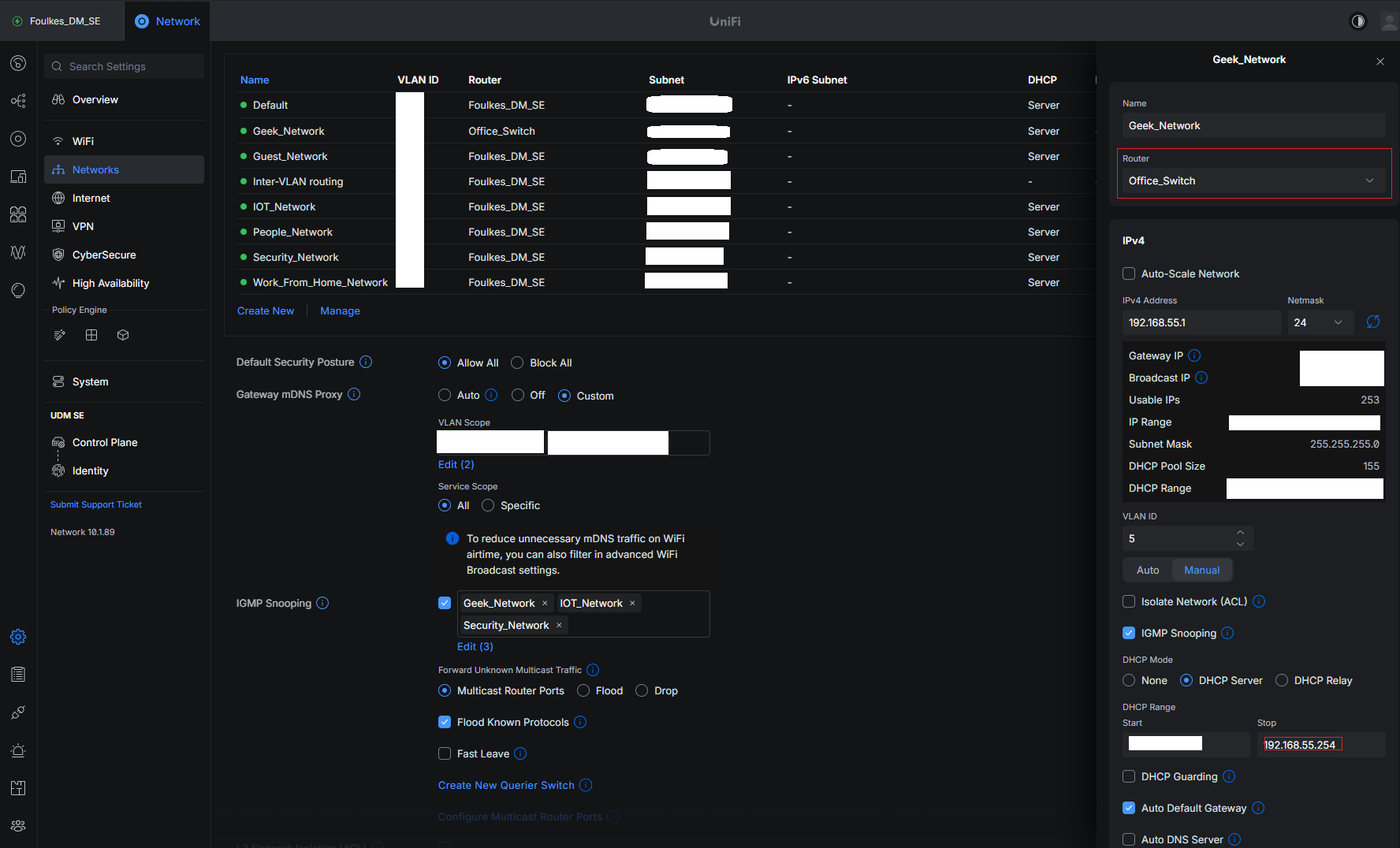
Select the `router` i.e switch that you want to deadicate as the router for vlan.
I personally choose to select the switch that both these vlans connect to, to improve overall performance by reducing the number of hops between devices on different VLANs.
Reviewing the Inter-VLAN Route
This should create a new entry into the Networking table called Inter-VLAN Routing with VLAN ID of 4040.
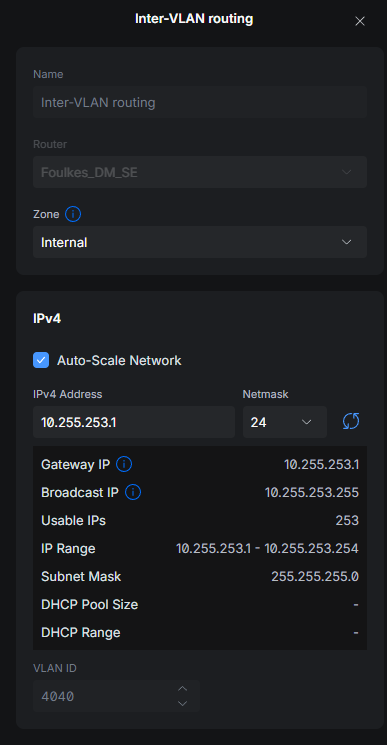
Result
So now traffic from the PC going to the NAS across VLANs should instead of traversing to the Dream Machine SE for routing, will instead will be routed by the USW Pro Max 16 PoE switch, thus avoiding the 1GBps bottleneck and allowing the devices to communicate at their full potential of 2.5Gbps.