Secure Boot With Arch Linux
Overview
This document covers the steps needed to configure Secure Boot with Asus X670E-PRO wifi motherboard running Arch Linux. Secure Boot is a security feature that helps ensure that your system boots using only software that is trusted by the Original Equipment Manufacturer (OEM).
Since I'm running a duel boot setup with Windows 11, So not to break anti cheat systems when I am gaming on Windows I need to ensure that Secure Boot is enabled in the BIOS and that my Arch Linux installation is properly signed to avoid having to enable/disable Secure Boot each time I switch OS.
Problem Statement
When updating the BIOS, for example updating to the latest version the custom keys and signatures for Arch Linux are lost, resulting in Secure Boot preventing Arch Linux from booting. This document covers the procedure to re-enable Secure Boot with Arch Linux after a BIOS update.
Recovering Arch Linux
Once the custom keys are lost, we need to disable Secure Boot temporarily to regain access to Arch Linux. Advanced > Boot > Secure Boot > Secure Boot Control > Other OS
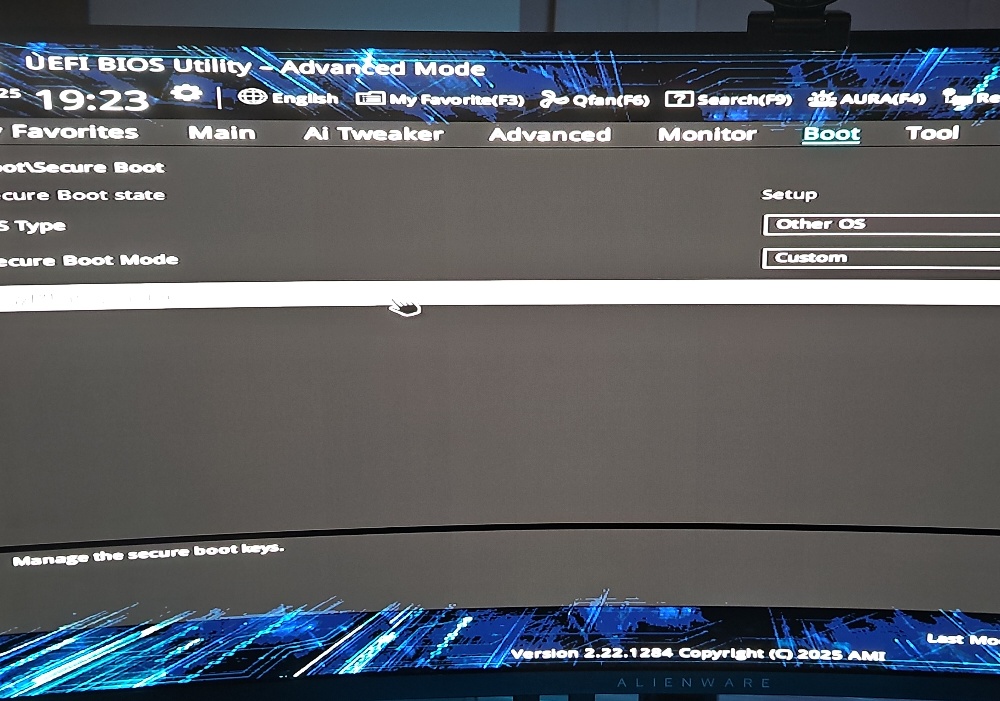
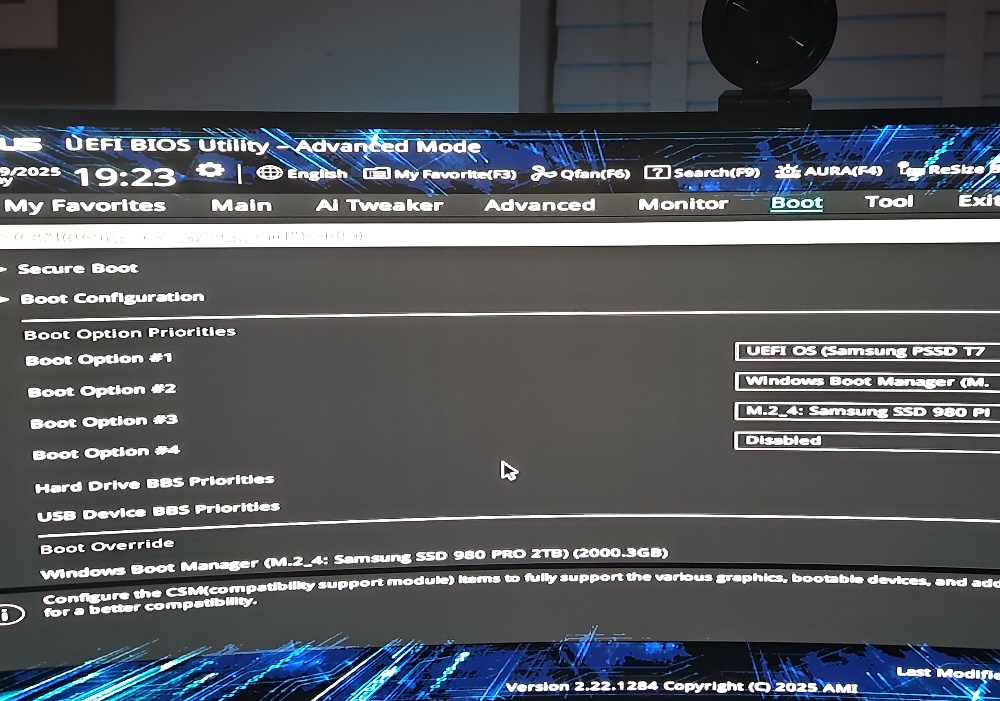
Check the boot order, ensuring that the drive with Arch Linux is set to boot first. Boot > Boot Option Priorities > Boot Option #1
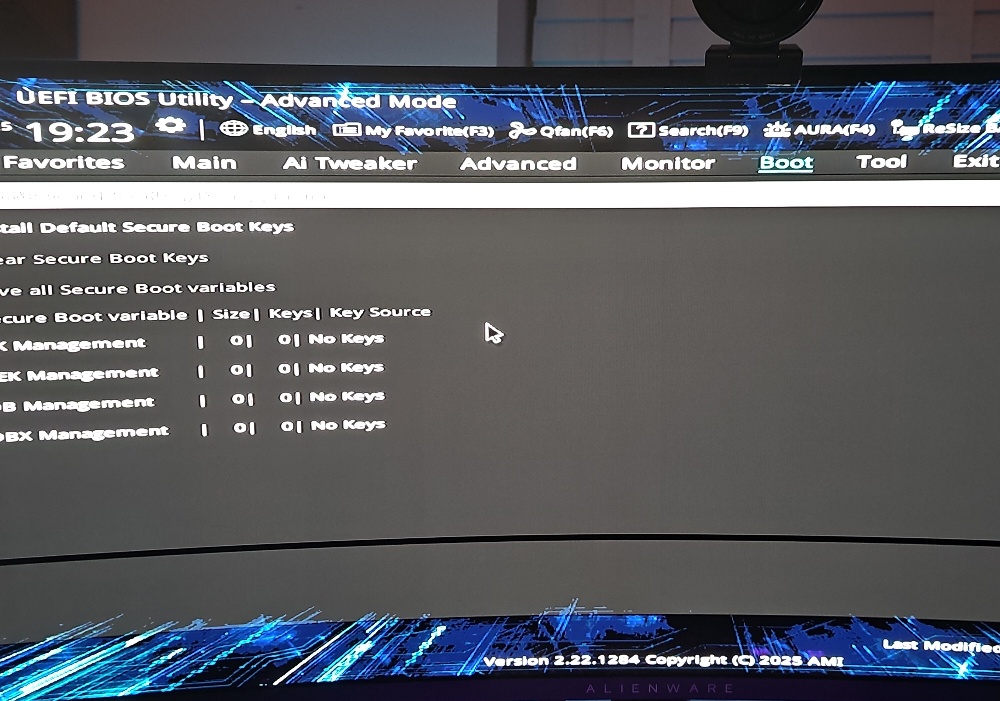
Before we leave the BIOS, we need to ensure that the Secure Boot keys are cleared to allow us to re-enroll them later. Advanced > Boot > Secure Boot > Clear Secure Boot Keys
Save the changes (F10) and exit the BIOS. Your system should now boot into Arch Linux.
Generating and Enrolling Secure Boot Keys
The following code block creates the necessary Secure Boot keys and enrolls them into the system using `sbctl`. It will then enroll the keys into the firmware the `-m` flag tells `sbctl` to enable Windows keys as well which are required so that when using systemd-boot loader, the Windows boot manager can also be verified by Secure Boot.
sbctl create-keys sbctl enroll-keys -mNext, we need to sign the bootloader and kernel so that they are trusted by Secure Boot. This is done using the following command
sbctl sign -s /boot/EFI/systemd/systemd-bootx64.efi sbctl sign -s /boot/vmlinuz-linux sudo sbctl sign -s /boot/EFI/BOOT/BOOTX64.EFI # If you copied the Windows bootloader, sign those too to be safe: sbctl sign -s /boot/EFI/Microsoft/Boot/bootmgfw.efi- sbctl status

This command will show the status of Secure Boot and the signed files.Ensure that the bootloader and kernel are listed as signed. Don't panic if the Windows bootloader shows as unsigned, as long as Secure Boot is enabled in the BIOS, it should work fine.
Re-enabling Secure Boot in BIOS
Restart your computer and enter the BIOS setup again by pressing the `DEL` key during boot.
Navigate to the Secure Boot settings and change the Secure Boot option from `Other OS` to `Windows UEFI mode`. Advanced > Boot > Secure Boot > Secure Boot Control > Windows UEFI mode
Double-check that the boot order is still set to boot from the Arch Linux drive first. Boot > Boot Option Priorities > Boot Option #1
Save the changes (F10) and exit the BIOS. Your system should now boot into Arch Linux with Secure Boot enabled.