True NAS Cluster Management
Getting the status of zpool
When a drive is Faulted it means that the drive is not responding to the system. This can be due to a number of reasons, including:
The drive has failed
The drive is not properly connected to the system
The drive is not powered on
After first checking points 1 and 2, if the drive is still Faulted, it is likely that the drive has failed. In this case, you will need to replace the drive.
Replacing a Faulted Drive
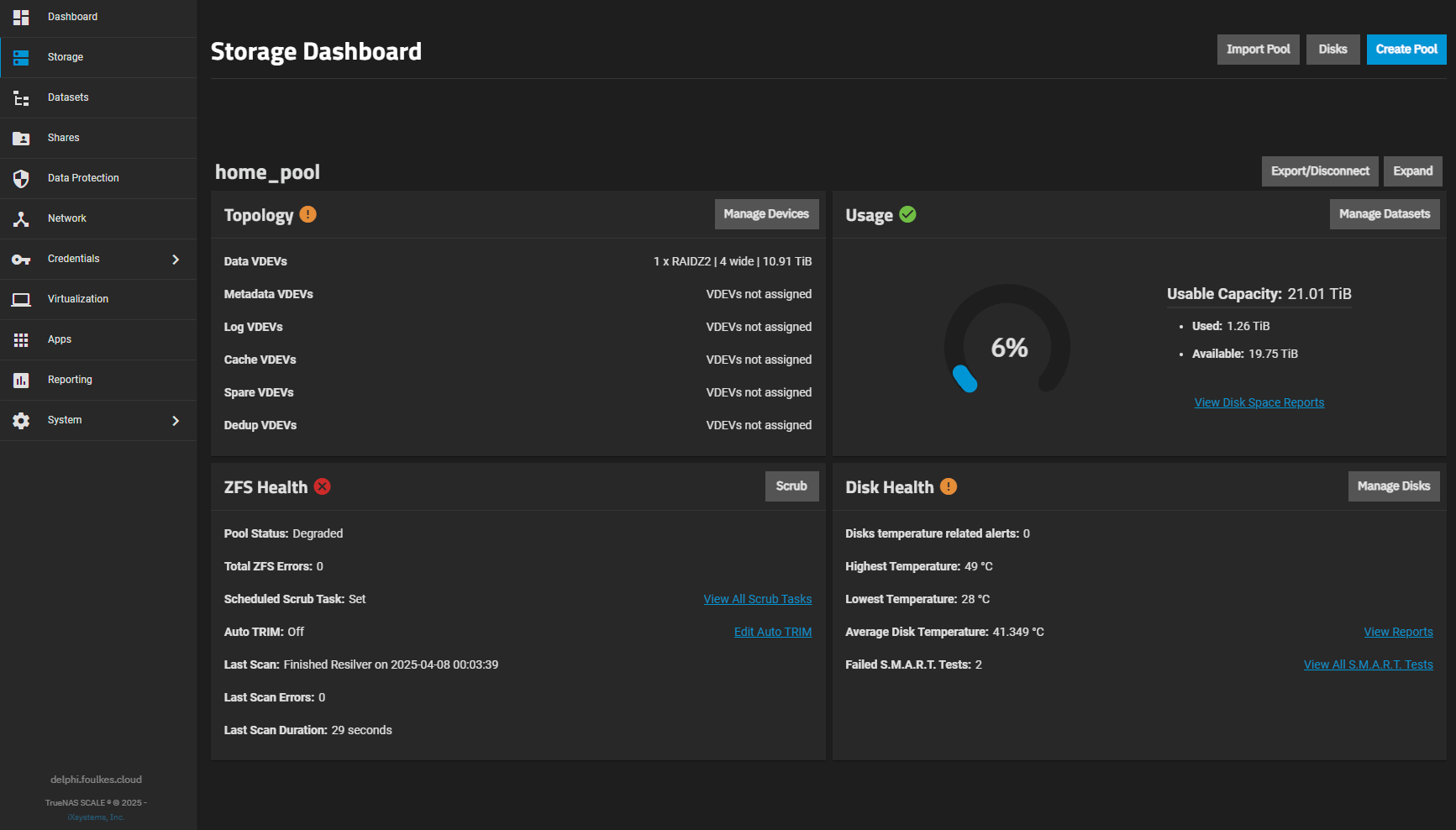
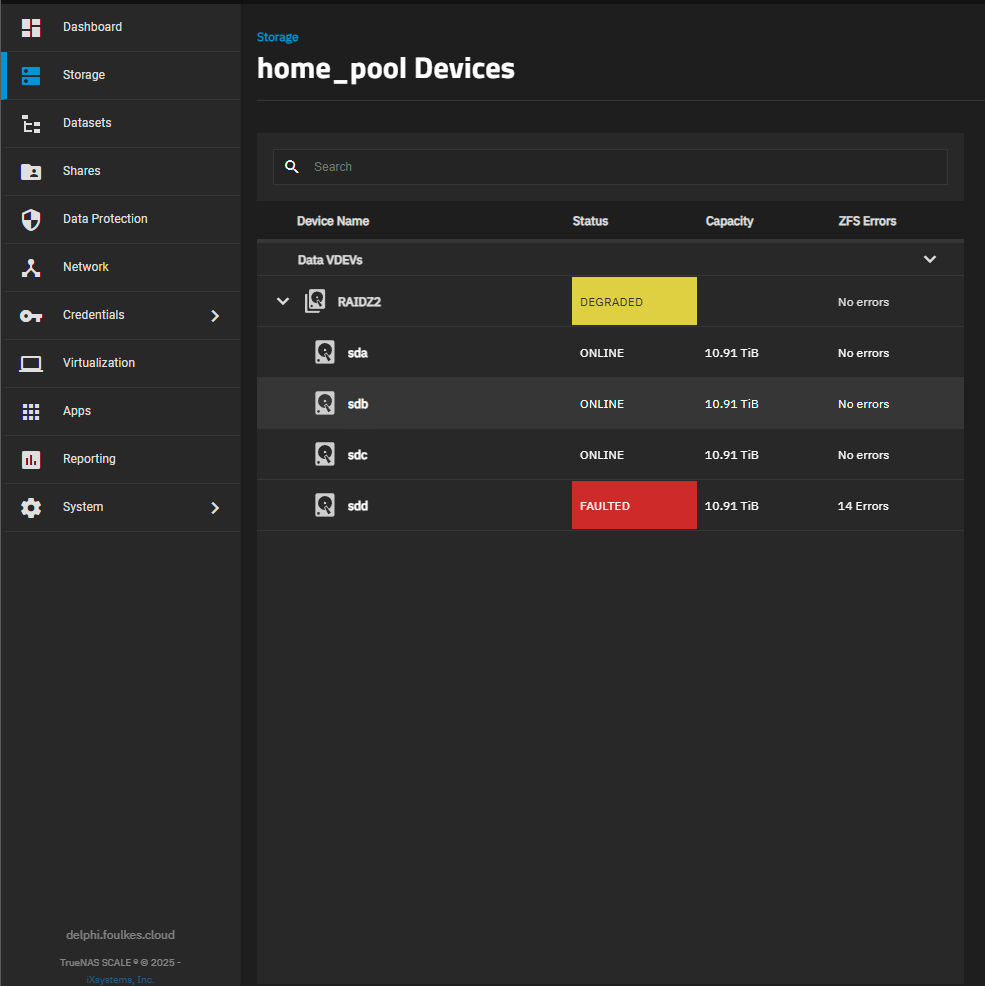
Replace a Faulted Drive
Check the status of the zpool as shown above image in the Truenas UI. document the `Faulted` drive Device Name i.e `sdd`.
From either `ssh` or via the `System -> Shell` Check the status of the drive using smartctl
sudo smartctl -a /dev/sddSMART Self-test log structure revision number 1 Num Test_Description Status Remaining LifeTime(hours) LBA_of_first_error # 1 Extended offline Completed: read failure 90% 16 16787464 # 2 Extended offline Completed: read failure 90% 7 15624 # 3 Short offline Completed without error 00% 6 - # 4 Short offline Completed without error 00% 3 - # 5 Short offline Aborted by host 90% 3 - # 6 Short offline Completed without error 00% 0 -Now that we have the device id, we need to turn off the system. Once booted down, physically remove the drive from the system. now reboot the system.
run sudo zpool status again and it should look something like this:
pool: home_pool state: DEGRADED status: One or more devices could not be used because the label is missing or invalid. Sufficient replicas exist for the pool to continue functioning in a degraded state. action: Replace the device using 'zpool replace'. see: https://openzfs.github.io/openzfs-docs/msg/ZFS-8000-4J scan: resilvered 1.16T in 03:11:33 with 0 errors on Wed Apr 9 11:52:05 2025 config: NAME STATE READ WRITE CKSUM home_pool DEGRADED 0 0 0 raidz2-0 DEGRADED 0 0 0 5eecca48-960f-41e7-8ada-f7009268da3a ONLINE 0 0 0 5139747264624222703 UNAVAIL 0 0 0 was /dev/disk/by-partuuid/40055ce3-3420-432b-9340-ed725bcd90f4 b057666d-7581-4bfe-bfdc-c36e01ebc8be ONLINE 0 0 0 79f45321-0375-49eb-845b-e4c221e4776c ONLINE 0 0 0 cache 7de8a6d7-6aeb-4075-9c6a-4471b66c193c ONLINE 0 0 0Capture the ID of the unavailable disk, (its at the end of the line) ex: 40055ce3-3420-432b-9340-ed725bcd90f4
Now shutdown the system again and insert the new drive.
Once the system is back up, check the status of the zpool again.
zpool statusVerify that the `Faulted` drive is no longer listed.
To replace the old disk in the pool, run the following command.
zpool replace home_pool 40055ce3-3420-432b-9340-ed725bcd90f4 sddWhere `home_pool` is the name of the pool, `40055ce3-3420-432b-9340-ed725bcd90f4` is the ID of the old disk, and `sdd` is the name of the new disk.