Using Image Builder
Adding a new application
Launch an Image Builder instance from the AppStream 2.0 console using an existing base image or a shared image.
Connect to the Image Builder instance using the streaming URL provided in the console. You can connect via the AppStream 2.0 client or a web browser.
Install and configure your applications on the Image Builder just as you would on a regular desktop. Test that your applications work as intended.
Use the AppStreamImageBuilder tool on the desktop .
Choose a name for the application.
Under launch path, enter the location of the exe used to launch the application.
If any launch parameters are required, enter them under launch parameters.
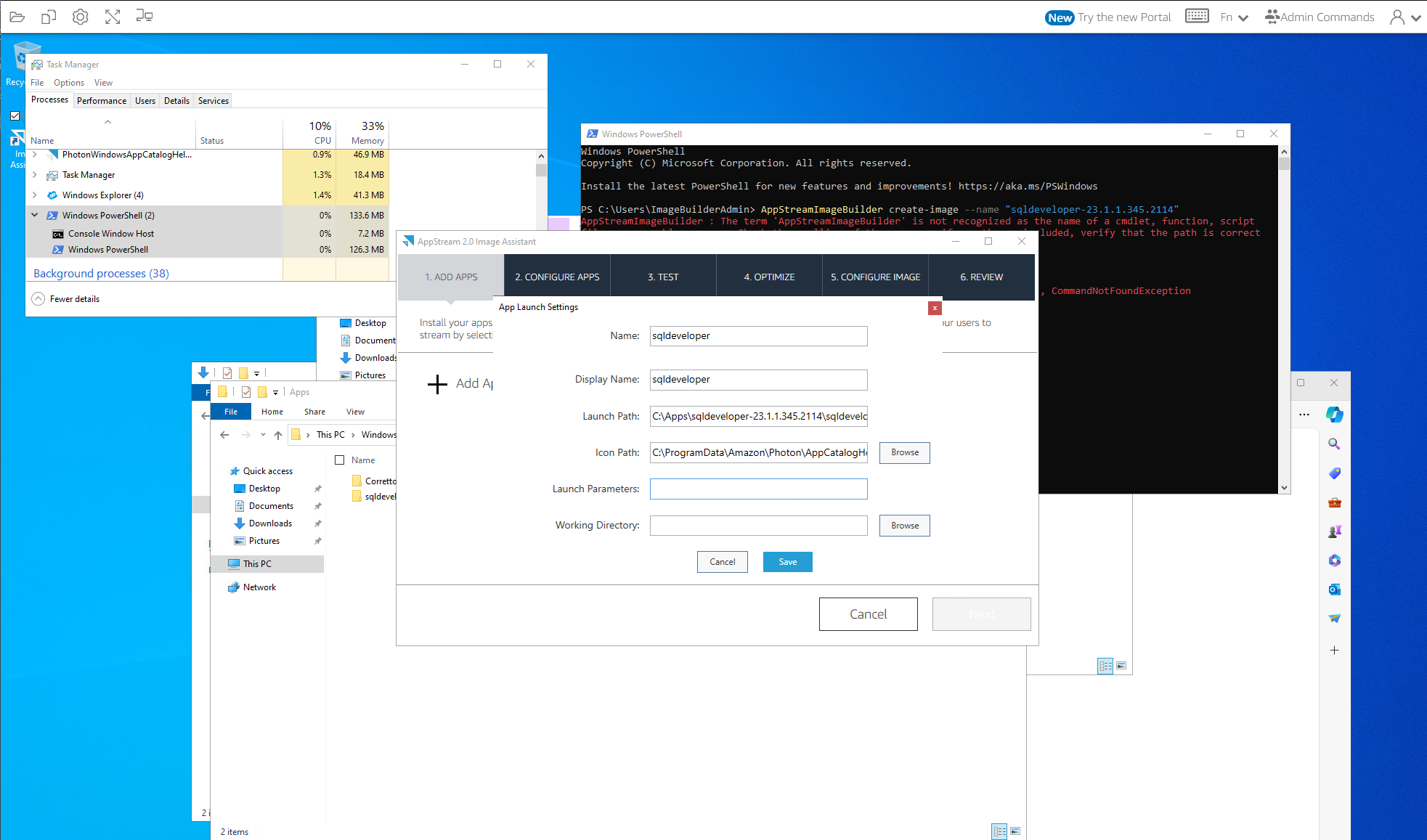
Click Next.
Under test, run as template user.
This will launch the template user, from here open the application via the AppStreamImageBuilder tool on the Desktop.
Once the application is open, set any defaults required for the application.

From the Image Assistant, select run as test user to test the image. This will launch a new fleet using the image you created. You can connect to the fleet using the streaming URL provided in the console. You can connect via the AppStream 2.0 client or a web browser.
The new image will appear in the image registry section of the AppStream 2.0 console with a status of "Available" once created.
You can now launch new fleets using your custom image which will have your applications pre-installed for users.
Optimise an Application
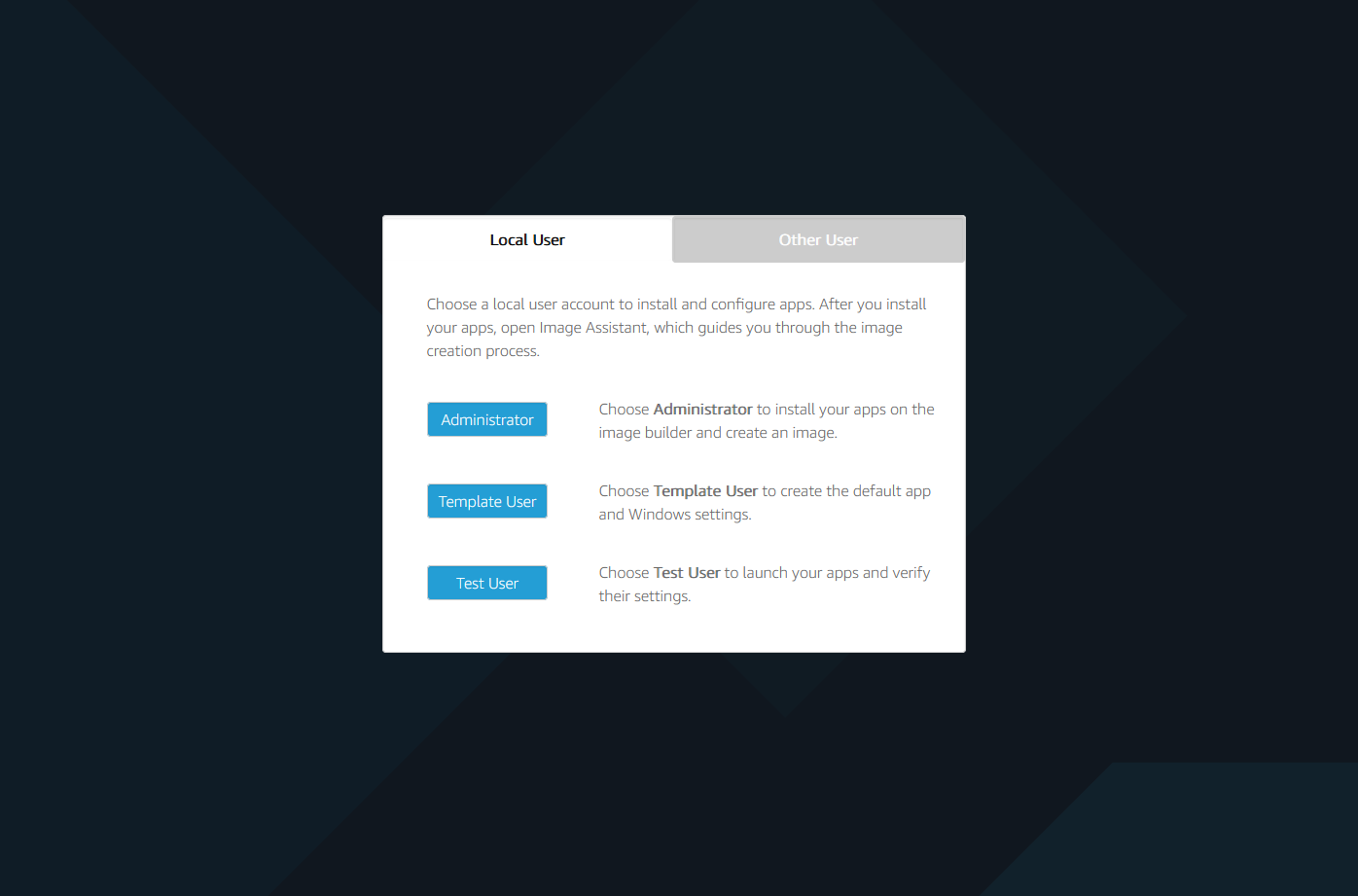
Select administrator user
Open image assistant
Go to step 4
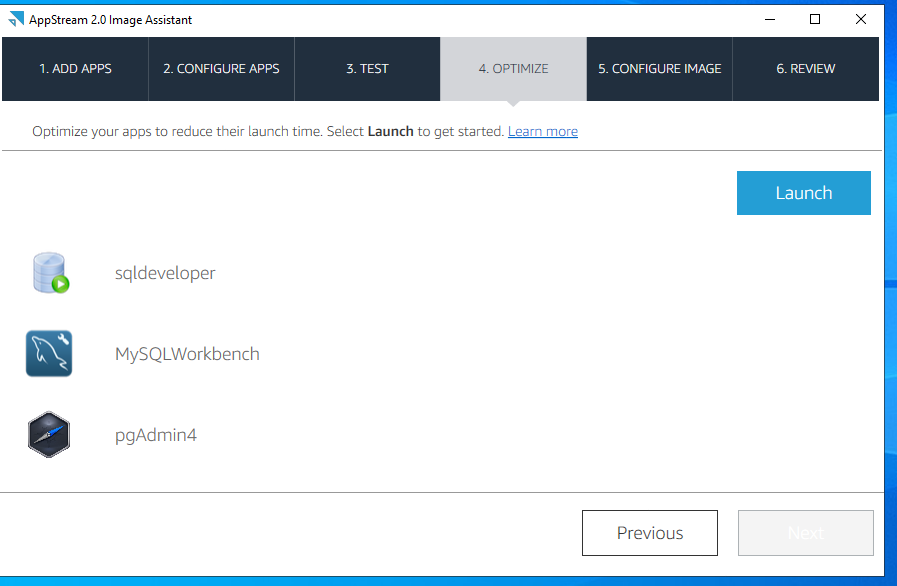
Follow the on-screen instructions.